> ## Documentation Index
> Fetch the complete documentation index at: https://docs.wendung.app/llms.txt
> Use this file to discover all available pages before exploring further.
# Funnels
> Create funnels from your tracked steps and keep an eye on conversion health across all of them.
A funnel is an ordered list of events users must complete, in order. The Funnels page lists every funnel in your project and gives you a quick read on which ones need attention.
 ## The funnels list
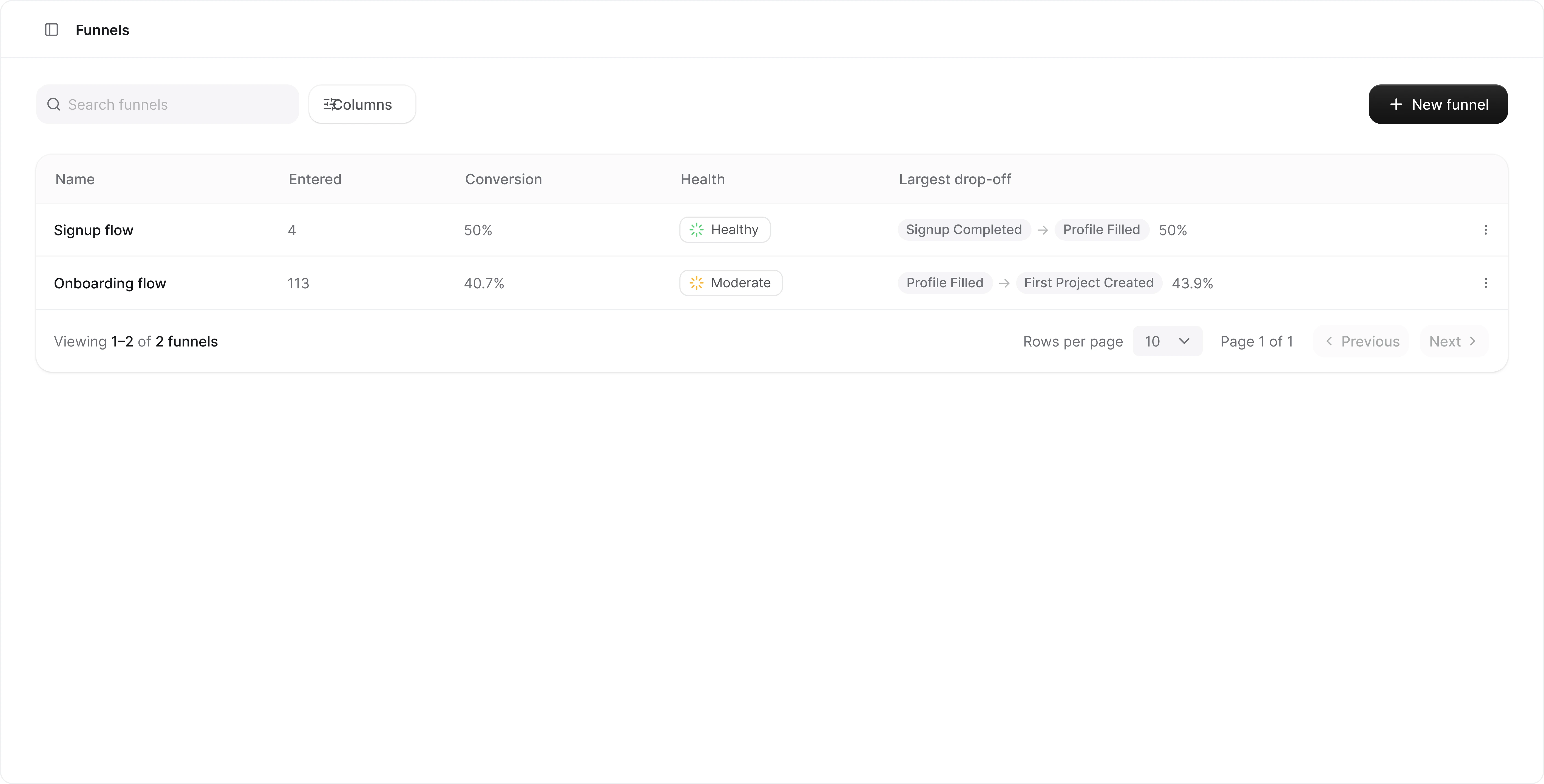
Each row shows the funnel's name, its overall conversion rate, a health indicator, and the largest drop-off between two steps. All columns are sortable, and the search box filters by name.
The menu at the end of each row lets you **Edit** or **Delete** a funnel. Deleting a funnel only removes the funnel definition, not the underlying events.
## Funnel health
The health indicator is a small ring. The arc fills to the funnel's conversion rate, and the color carries the verdict:
| Health | Meaning |
| - | - |
| **Healthy** (green) | Conversion is 50% or higher |
| **Moderate** (orange) | Conversion is between 20% and 50% |
| **Critical** (red) | Conversion is below 20% |
A funnel that no one entered in the selected date range shows an empty gray ring instead.
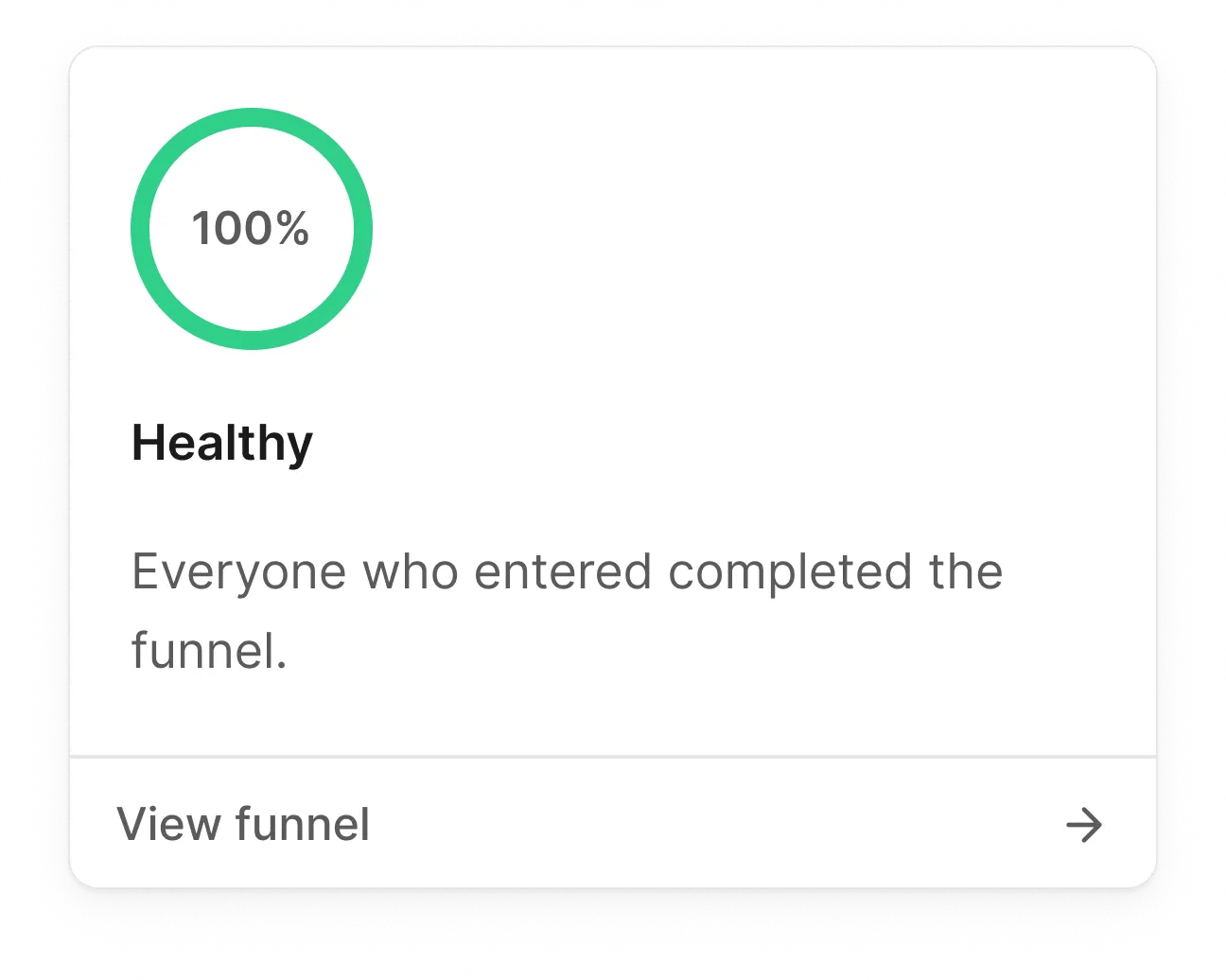
Hover the indicator to open the health preview. It shows the conversion rate in a larger ring, the verdict, and up to three findings about what changed and where:
## The funnels list
Each row shows the funnel's name, its overall conversion rate, a health indicator, and the largest drop-off between two steps. All columns are sortable, and the search box filters by name.
The menu at the end of each row lets you **Edit** or **Delete** a funnel. Deleting a funnel only removes the funnel definition, not the underlying events.
## Funnel health
The health indicator is a small ring. The arc fills to the funnel's conversion rate, and the color carries the verdict:
| Health | Meaning |
| - | - |
| **Healthy** (green) | Conversion is 50% or higher |
| **Moderate** (orange) | Conversion is between 20% and 50% |
| **Critical** (red) | Conversion is below 20% |
A funnel that no one entered in the selected date range shows an empty gray ring instead.
Hover the indicator to open the health preview. It shows the conversion rate in a larger ring, the verdict, and up to three findings about what changed and where:
 * Health changed against the previous period: "Health dropped from Healthy to Critical this period."
* Conversion moved, and when the movement started: "Conversion is down 22pp vs the previous period, mostly since Tuesday."
* The biggest drop-off between two steps, including when that step converts far below the funnel's own average.
* The segment that carries most of the loss: "Mobile Safari accounts for 61% of that loss."
* A step where users take several times longer than at any other step.
A finding only appears when the data clearly supports it. If nothing stands out, the preview says that instead of guessing.
**View funnel** at the bottom of the preview opens the details page. The same indicator appears in the **Top funnels** card on the [project overview](/help/overview) and next to the funnel name on the [details page](/help/funnel-details).
Creating, editing, and deleting funnels requires the owner or admin role.
Members get a read-only view. The number of funnels per project depends on
your [plan](/help/plans); once the limit is reached, the New funnel
button is disabled until you delete a funnel or upgrade.
## Creating a funnel
Click **New funnel** at the top right to open the funnel builder.
* Health changed against the previous period: "Health dropped from Healthy to Critical this period."
* Conversion moved, and when the movement started: "Conversion is down 22pp vs the previous period, mostly since Tuesday."
* The biggest drop-off between two steps, including when that step converts far below the funnel's own average.
* The segment that carries most of the loss: "Mobile Safari accounts for 61% of that loss."
* A step where users take several times longer than at any other step.
A finding only appears when the data clearly supports it. If nothing stands out, the preview says that instead of guessing.
**View funnel** at the bottom of the preview opens the details page. The same indicator appears in the **Top funnels** card on the [project overview](/help/overview) and next to the funnel name on the [details page](/help/funnel-details).
Creating, editing, and deleting funnels requires the owner or admin role.
Members get a read-only view. The number of funnels per project depends on
your [plan](/help/plans); once the limit is reached, the New funnel
button is disabled until you delete a funnel or upgrade.
## Creating a funnel
Click **New funnel** at the top right to open the funnel builder.
 ### Basics
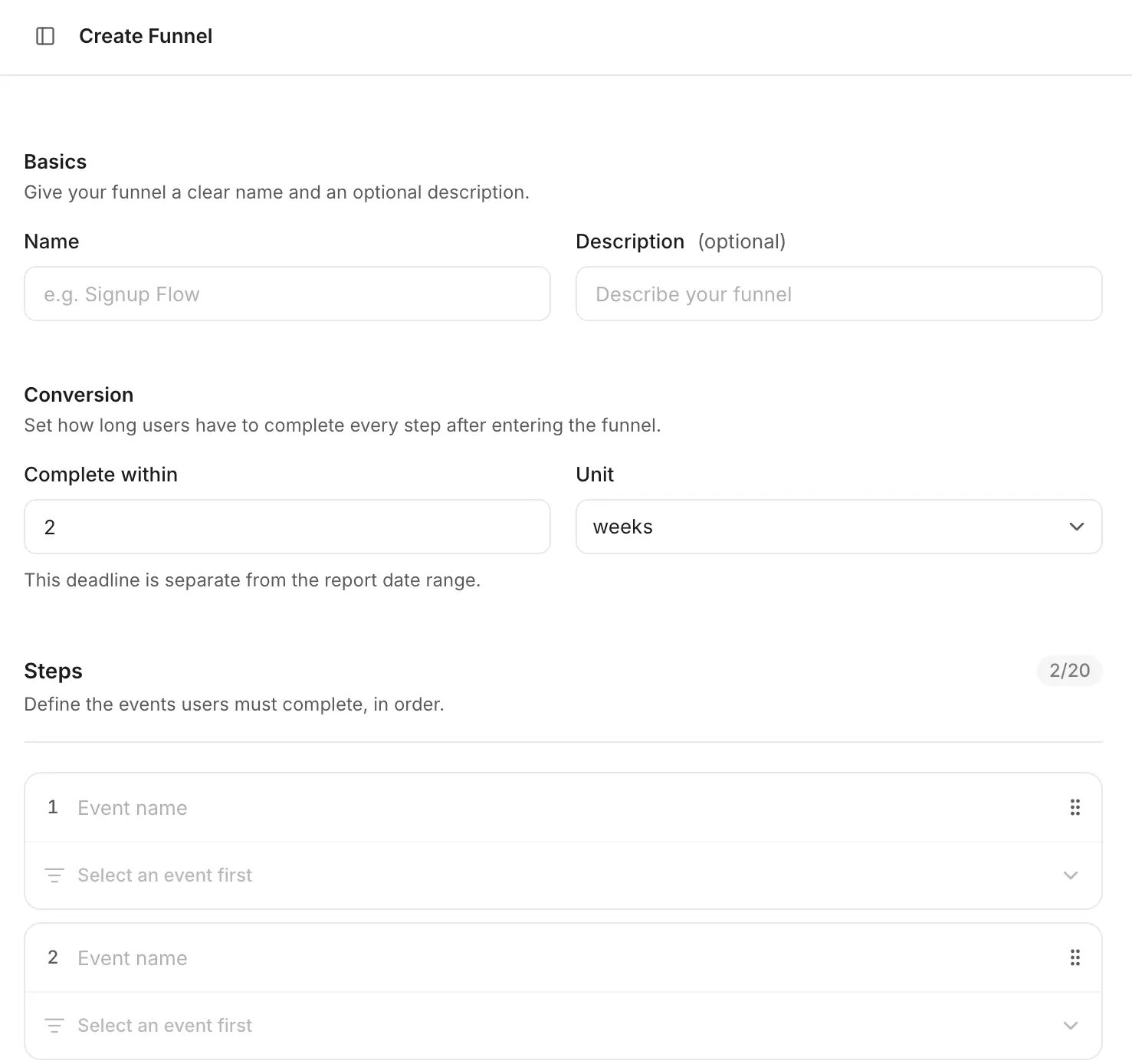
Give your funnel a clear name (up to 100 characters) and an optional description.
### Conversion window
Set how long users have to complete every step after entering the funnel, for example "2 weeks". You can use minutes, hours, days, or weeks, anywhere between 1 minute and 365 days. The default is 2 weeks.
This deadline is separate from the report date range: the date range decides who enters the funnel, the conversion window decides how long they get to finish it.
### Steps
Define between 2 and 20 steps. Each step is an event name, and the event picker suggests events you already track, along with how often each one occurred.
### Basics
Give your funnel a clear name (up to 100 characters) and an optional description.
### Conversion window
Set how long users have to complete every step after entering the funnel, for example "2 weeks". You can use minutes, hours, days, or weeks, anywhere between 1 minute and 365 days. The default is 2 weeks.
This deadline is separate from the report date range: the date range decides who enters the funnel, the conversion window decides how long they get to finish it.
### Steps
Define between 2 and 20 steps. Each step is an event name, and the event picker suggests events you already track, along with how often each one occurred.
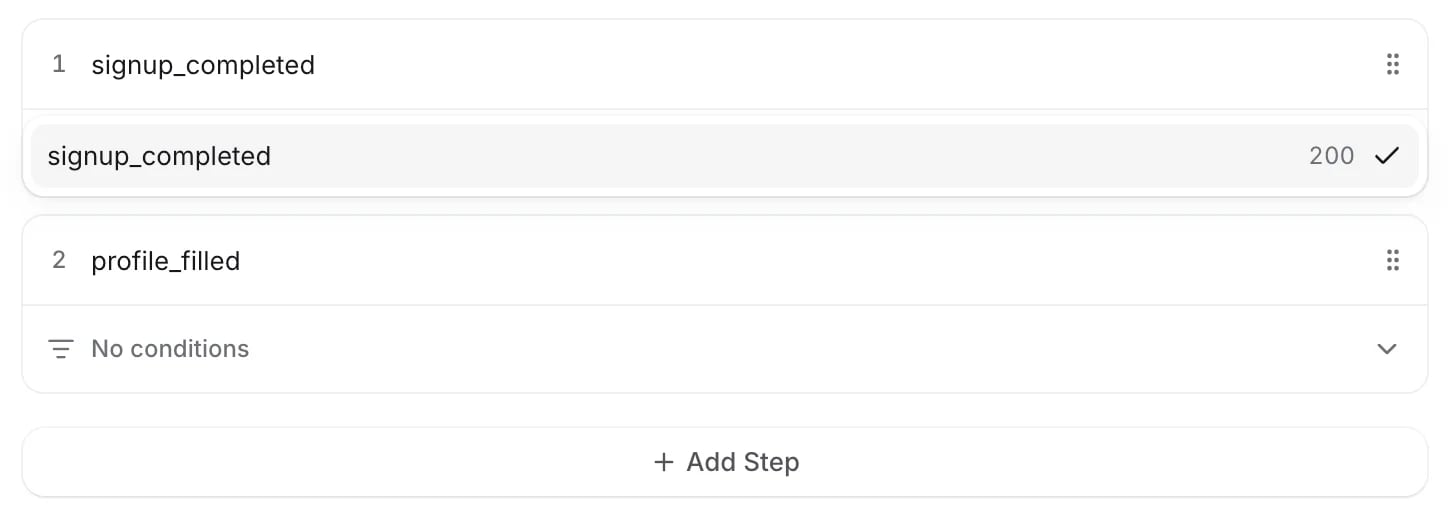 Steps match event names exactly, so the names here must match what you send with [`Wendung.step()`](/api-reference/step). Drag the handle on the right of a step to reorder, and use **Add Step** to append more.
### Step conditions
Every step can optionally be narrowed down with property conditions. Expand a step and click **Add condition** to pick one of the event's properties.
Steps match event names exactly, so the names here must match what you send with [`Wendung.step()`](/api-reference/step). Drag the handle on the right of a step to reorder, and use **Add Step** to append more.
### Step conditions
Every step can optionally be narrowed down with property conditions. Expand a step and click **Add condition** to pick one of the event's properties.
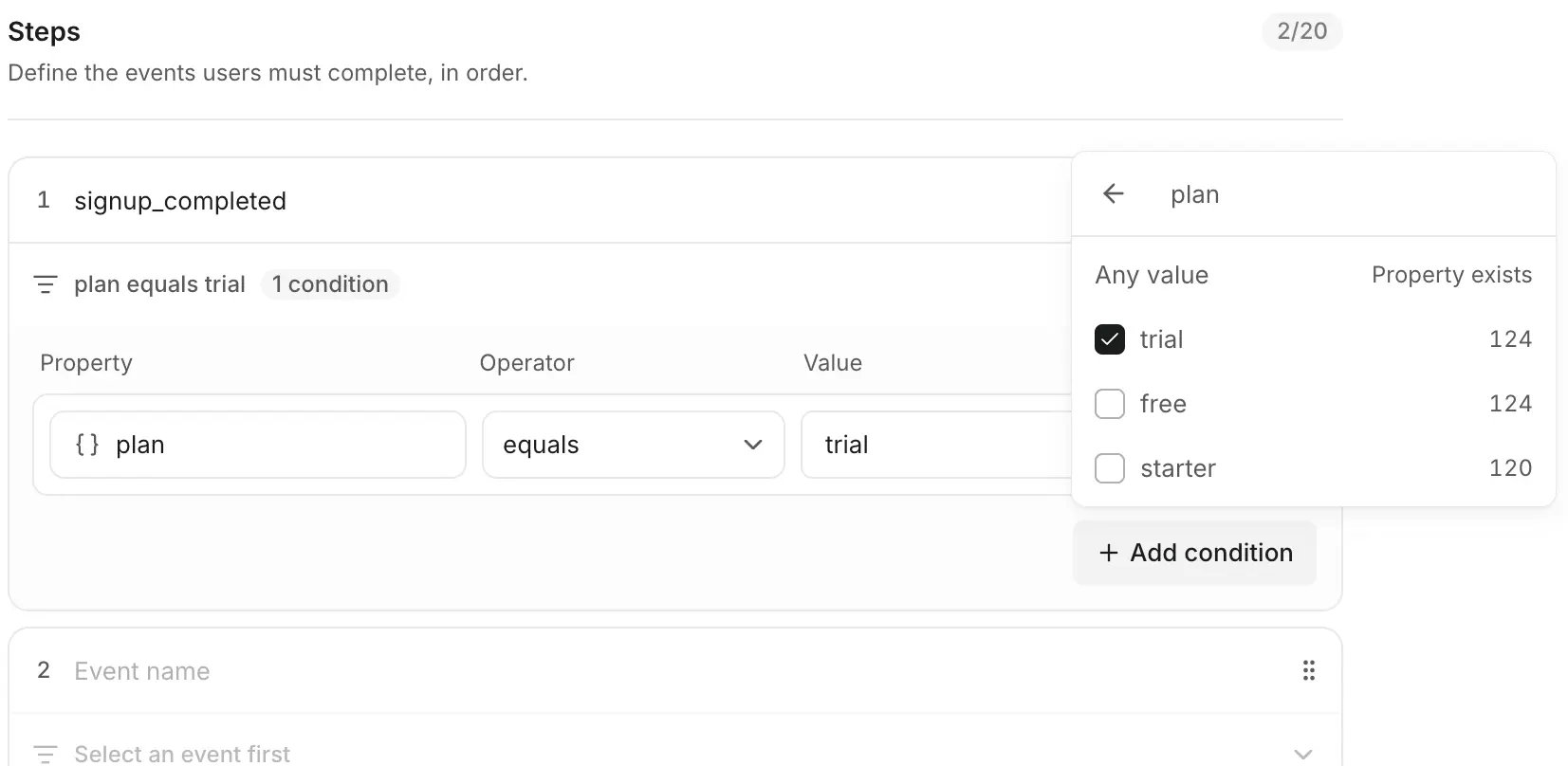 For each condition you choose a property, an operator, and a value:
* **equals** or **does not equal** a specific value. The value list shows what you've actually tracked, with counts, and you can also enter a custom value.
* **exists**, which matches any value. Pick **Any value** in the value list.
For each condition you choose a property, an operator, and a value:
* **equals** or **does not equal** a specific value. The value list shows what you've actually tracked, with counts, and you can also enter a custom value.
* **exists**, which matches any value. Pick **Any value** in the value list.
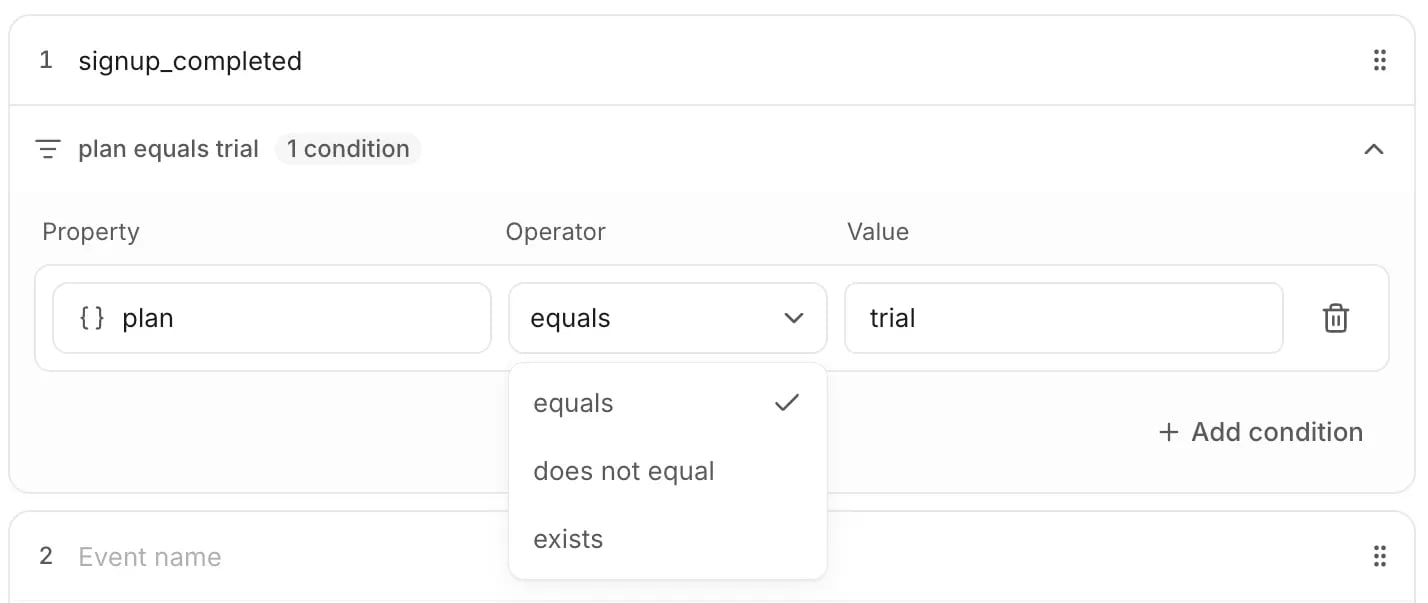 A step can have up to 10 conditions, and each property can only be used once per step. A user only advances through the step if the event matches all of its conditions.
Conditions are a good way to build variants of the same funnel. For example,
two "Signup flow" funnels where the first step is `signup_completed` with
`plan equals free` in one and `plan equals trial` in the other.
When you're done, click **Create**. The funnel starts analyzing your existing events right away, so you don't need to wait for new data.
This documentation is built and hosted on [Mintlify](https://mintlify.com), a developer documentation platform.
A step can have up to 10 conditions, and each property can only be used once per step. A user only advances through the step if the event matches all of its conditions.
Conditions are a good way to build variants of the same funnel. For example,
two "Signup flow" funnels where the first step is `signup_completed` with
`plan equals free` in one and `plan equals trial` in the other.
When you're done, click **Create**. The funnel starts analyzing your existing events right away, so you don't need to wait for new data.
This documentation is built and hosted on [Mintlify](https://mintlify.com), a developer documentation platform.