> ## Documentation Index
> Fetch the complete documentation index at: https://docs.wendung.app/llms.txt
> Use this file to discover all available pages before exploring further.
# Sites
> Register the hostnames you want web analytics for and see their traffic at a glance.
The Sites page lists every hostname you have registered for web analytics in this project, with live and 24-hour numbers for each. It is where you add a site and where you go to open one.
 ## The sites list
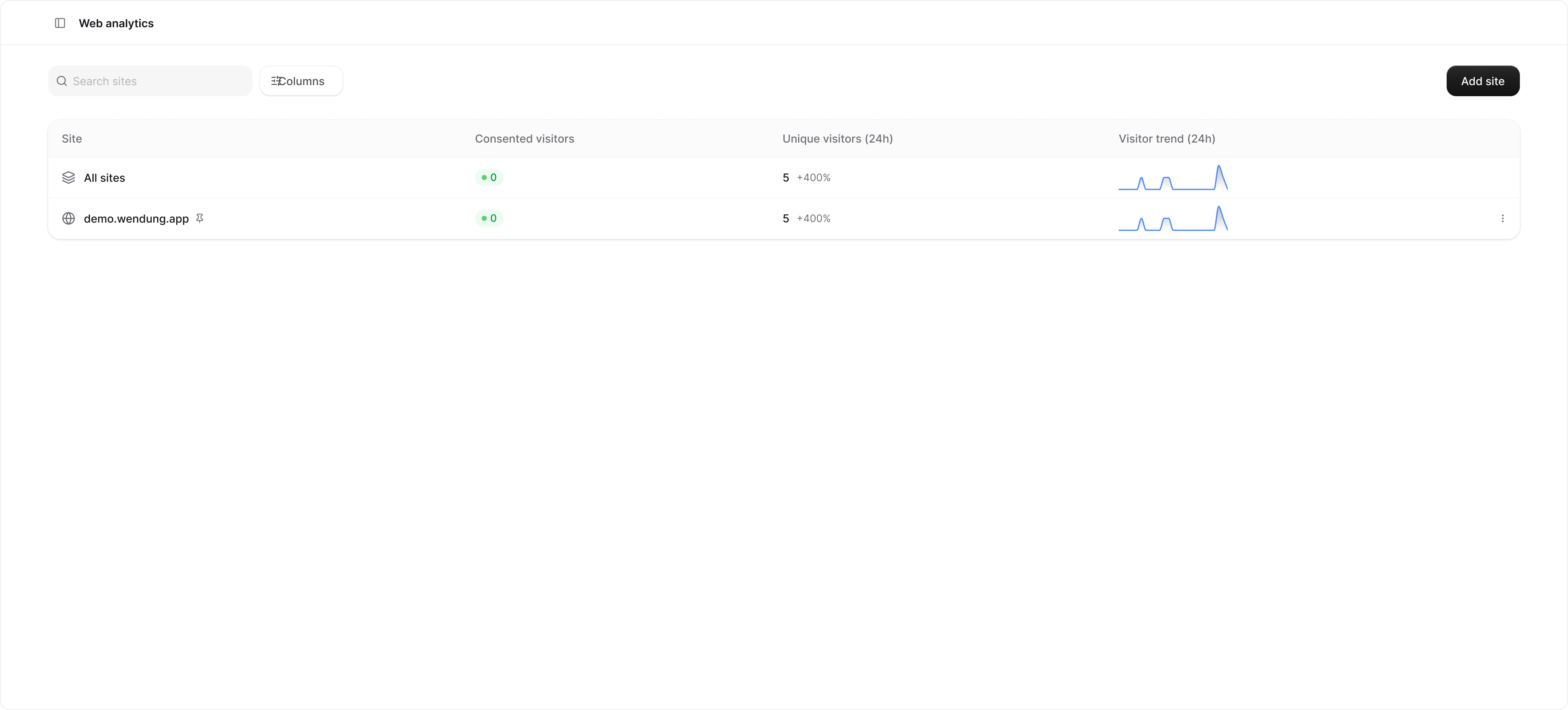
Each row shows the hostname, the visitors active in the last five minutes, the unique visitors in the last 24 hours, and a 24-hour sparkline. Click a row to open the [site details](/help/site-details).
The **All sites** row at the top combines every hostname the project has received pageviews from, registered or not. It is the place to look when your app runs on several hostnames and you want one number.
The menu at the end of a row lets you **Pin** or **Unpin** the site on the [Overview](/help/overview#web-tab), open its **Settings**, or **Delete** it. Deleting a site removes its settings and its saved filter; the pageviews it collected stay and remain visible under **All sites**.
## Adding a site
Click **Add site**. The hostname picker lists the project's [allowed origins](/help/settings#allowed-origins), so add the origin there first if it is missing. A site only needs a hostname to start; path rules and the query parameter allowlist are optional and can be changed later in [site settings](/help/site-settings).
Registering a site does not start or move any data. The SDK sends pageviews for every hostname once `trackPageviews` is on; a site is a saved view onto that stream.
## Unregistered hostnames
When the project receives pageviews from a hostname without a site, the page lists it under the table with a shortcut to register it. That is usually a preview deployment or a staging domain.
## Pageviews are not showing
* Pageview tracking is off. Set `trackPageviews: true` for pageviews with granted consent, or `'auto'` to also collect aggregate pageviews while pending. Denied consent stops both. See the [setup guide](/guides/web-analytics).
* The workspace is on the free plan, which has no pageview allowance. The page shows an upgrade prompt in that case.
* The monthly pageview allowance is used up. New pageviews are dropped until the cycle resets or you upgrade; see [Plans and limits](/help/plans#monthly-pageviews).
* The hostname is not on the allowed origins list, so the ingest endpoint rejects the whole request. Check the [Events page](/help/events) for `403` rejections.
* Only bounce rate, session duration, and views per session are empty. Those come from session data that is rebuilt once an hour; visitors and pageviews update right away.
This documentation is built and hosted on [Mintlify](https://mintlify.com), a developer documentation platform.
## The sites list
Each row shows the hostname, the visitors active in the last five minutes, the unique visitors in the last 24 hours, and a 24-hour sparkline. Click a row to open the [site details](/help/site-details).
The **All sites** row at the top combines every hostname the project has received pageviews from, registered or not. It is the place to look when your app runs on several hostnames and you want one number.
The menu at the end of a row lets you **Pin** or **Unpin** the site on the [Overview](/help/overview#web-tab), open its **Settings**, or **Delete** it. Deleting a site removes its settings and its saved filter; the pageviews it collected stay and remain visible under **All sites**.
## Adding a site
Click **Add site**. The hostname picker lists the project's [allowed origins](/help/settings#allowed-origins), so add the origin there first if it is missing. A site only needs a hostname to start; path rules and the query parameter allowlist are optional and can be changed later in [site settings](/help/site-settings).
Registering a site does not start or move any data. The SDK sends pageviews for every hostname once `trackPageviews` is on; a site is a saved view onto that stream.
## Unregistered hostnames
When the project receives pageviews from a hostname without a site, the page lists it under the table with a shortcut to register it. That is usually a preview deployment or a staging domain.
## Pageviews are not showing
* Pageview tracking is off. Set `trackPageviews: true` for pageviews with granted consent, or `'auto'` to also collect aggregate pageviews while pending. Denied consent stops both. See the [setup guide](/guides/web-analytics).
* The workspace is on the free plan, which has no pageview allowance. The page shows an upgrade prompt in that case.
* The monthly pageview allowance is used up. New pageviews are dropped until the cycle resets or you upgrade; see [Plans and limits](/help/plans#monthly-pageviews).
* The hostname is not on the allowed origins list, so the ingest endpoint rejects the whole request. Check the [Events page](/help/events) for `403` rejections.
* Only bounce rate, session duration, and views per session are empty. Those come from session data that is rebuilt once an hour; visitors and pageviews update right away.
This documentation is built and hosted on [Mintlify](https://mintlify.com), a developer documentation platform.